User Interface Overview
The Fast Designer workspace features an intuitive, multi-panel interface designed to streamline report creation, layout design, and data binding.
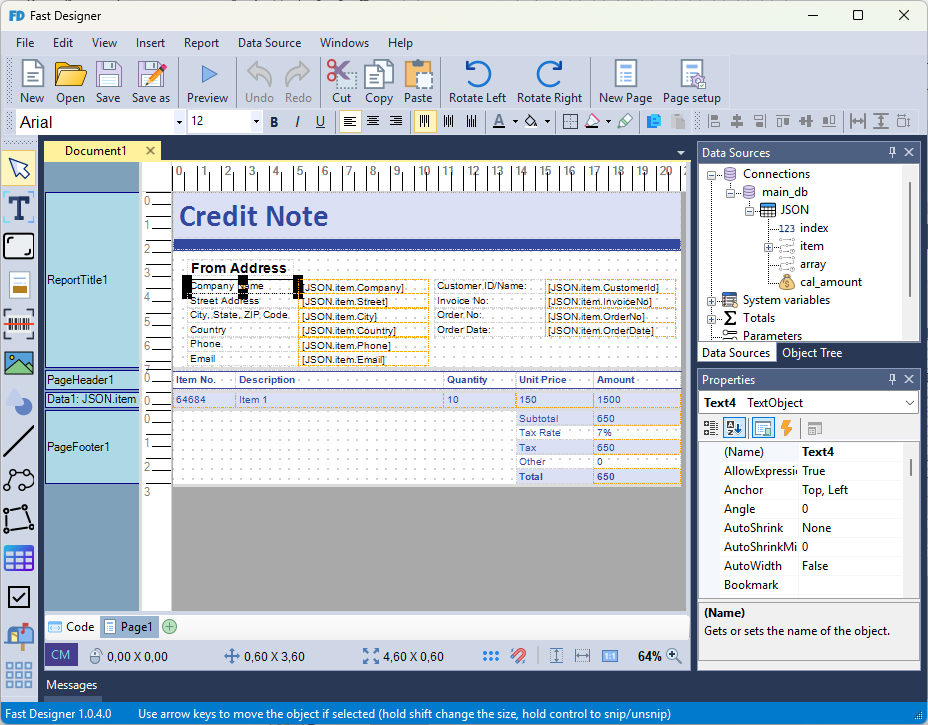
The application workspace consists of the following primary interface panels and component groups:
Workspace Components
1. Standard Toolbar
Located at the top of the interface, this toolbar provides direct access to primary file operations—such as New, Open, and Save—alongside fundamental layout editing controls.

2. Text and Layout Toolbars
Provides specialized configuration controls for typography, text positioning, cell alignment, and font style modification.

3. Shape Toolbar
Contains a palette of customizable vector shapes and design lines that can be inserted directly onto the canvas to structure report sections.

4. Data Source Window
Displays an interactive tree layout containing all available data connections, data tables, parameter tokens, and aggregate totals defined within the report.
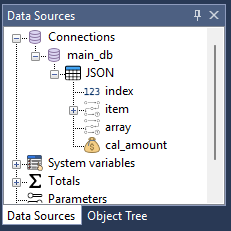
5. Object Tree
Maintains a hierarchical structural layout view of every individual design component, text block, and shape present inside the active file page.

6. Property Window
Displays a detailed parameters index showing all configuration attributes, design alignments, formatting parameters, and stylistic traits for the currently highlighted item.

7. Message Window
Serves as the internal error logger console, flagging warnings, optimization metrics, or compilation exceptions associated with the active layout file.

8. Document Editor Canvas
The primary layout workspace area. It includes contextual page rulers along the borders and data band layout designations along the left margin for report composition.
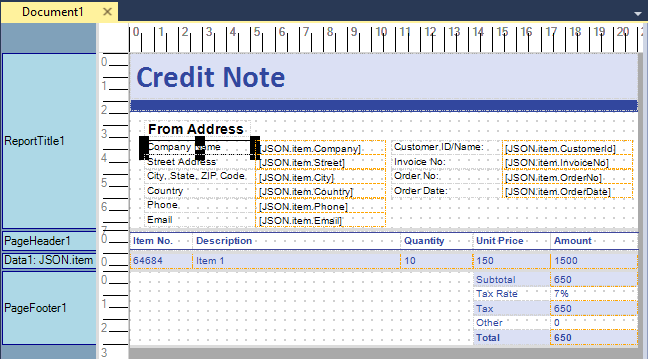
9. View Switcher (Code / Page Tabs)
Allows developers to seamlessly toggle the active workspace preview mode between the visual page canvas mode and the foundational underlying source code view.

10. Selection Context Bar
Displays structural tracking dimensions, positional coordinates, and canvas display settings for the explicitly highlighted shape element.

11. Application Status & Version Information
Displays the active software build version number alongside practical usage shortcuts and optimization hints for leveraging Fast Designer.
